


Elementor Save Template Feature: A Time Saving Tool for Web Designers
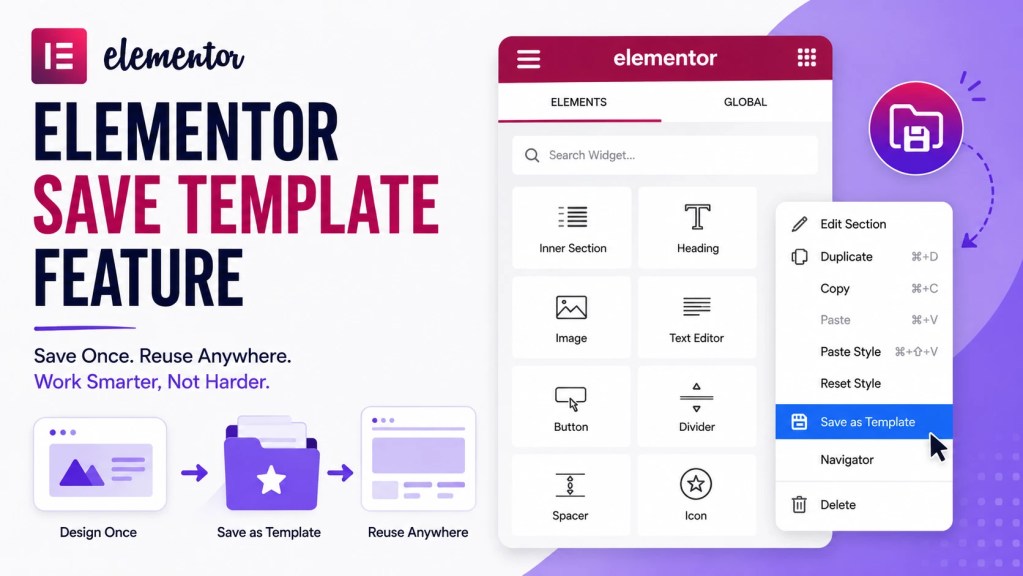
If you regularly build websites using Elementor, the Save Template feature can help you work faster and maintain a consistent design across multiple pages.
What is the Elementor Save Template Feature?
The Save Template feature allows you to save any section, container, page, or complete website layout as a reusable template. Instead of designing the same elements repeatedly, you can save them once and insert them whenever needed.
This feature is especially useful for web designers, developers, and digital marketers who manage multiple websites.
Benefits of Using Save Template
Saves Time
Create a design once and reuse it on different pages or projects.
Maintains Consistency
Keep the same design style, colors, fonts, and layouts across your website.
Faster Client Projects
Build websites more efficiently by using pre designed templates for headers, footers, contact sections, testimonials, and call to action blocks.
Easy Updates
When using global templates, design changes can be applied quickly without rebuilding sections from scratch.
How to Save a Template in Elementor (Step by Step)
Save a Section or Container as a Template
- Open your page with Elementor.
- Hover over the section or container you want to save.
- Click the six dot handle at the top of the section/container.
- Right click and select Save as Template.
- Enter a template name.
- Click Save.
Save an Entire Page as a Template
- Open the page in Elementor.
- Click the arrow beside the Publish or Update button.
- Select Save as Template.
- Enter a template name.
- Click Save.
Access Your Saved Templates
- Open any page with Elementor.
- Click the Folder icon in the editor area.
- Select the My Templates tab.
- Browse your saved templates.
Insert a Saved Template
- Open the page where you want to use the template.
- Click the Folder icon.
- Go to My Templates.
- Find your saved template.
- Click Insert.
- Confirm the import if prompted.
Export a Template
- Go to Templates → Saved Templates in WordPress Dashboard.
- Hover over the template.
- Click Export Template.
- The template will be downloaded as a JSON file.
Import a Template
- Go to Templates → Saved Templates.
- Click Import Templates.
- Upload the JSON template file.
- Click Import Now.
- The template will appear in your template library and can be inserted into any page.
Workflow Summary
Create Design → Save as Template → Store in My Templates → Insert on New Pages → Export (Optional) → Import on Another Website → Reuse Anytime
This workflow helps web designers save hours of work while maintaining a consistent design across multiple projects.
Conclusion
The Elementor Save Template feature is one of the easiest ways to speed up website development. Whether you are building a business website, portfolio, or landing page, reusable templates help maintain consistency while reducing design time.
Looking for professional website design and Elementor development services?
More Posts...

Technical SEO: Complete Guide for Beginners

Off Page SEO: A Complete Beginner Guide

Advanced Features in WordPress Every Website Owner Should Know

Dark Mode vs Light Mode: Which Is Better for Websites?

What Is Antigravity? A Beginner’s Guide

WooCommerce vs Custom eCommerce Development: Which Is Right for Your Business?

How to Write Blogs That Rank on Google

AI Overviews and Their Impact on SEO

Top Marketing Trends for 2026 Every Business Should…

AI Tools for Content Creation: Create Better Content in Less Time

Why Hire a WordPress Developer in Malappuram

How to Set Up Instagram Comment Automation Using Meta Business Suite

Elementor vs Custom Website Development: Which One Is Better?
